Calendly Events
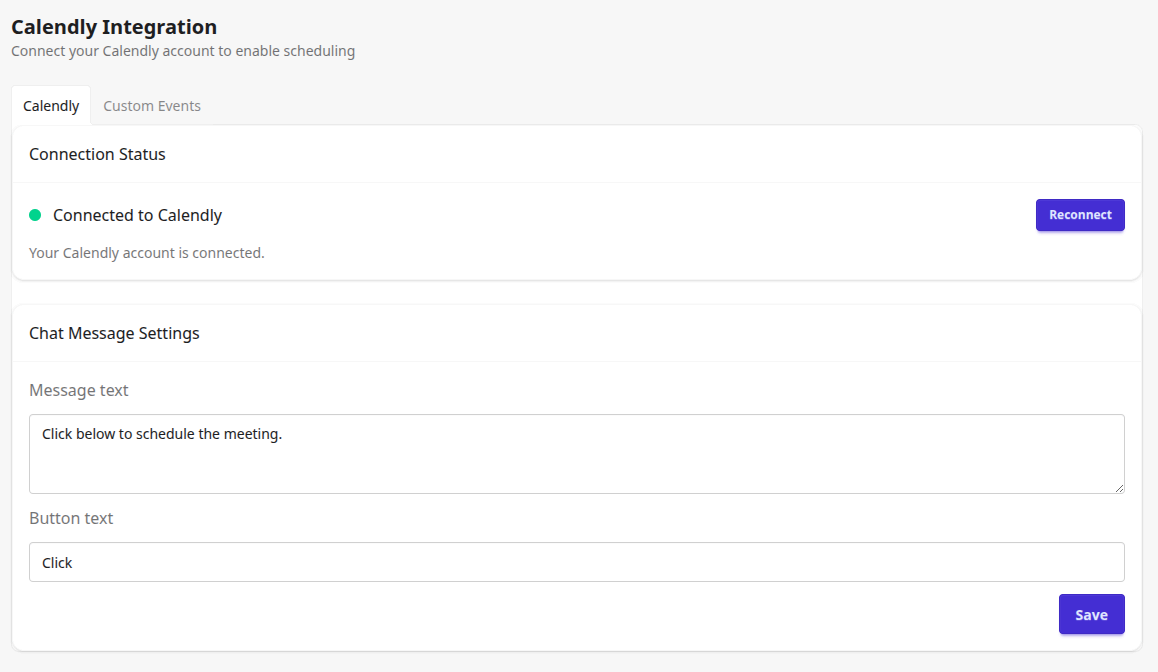
Edit Message and Button Texts
Each Calendly Event will be sent as a text message with a clickable button. In the plugin Settings you can edit the message and the button text for those events.
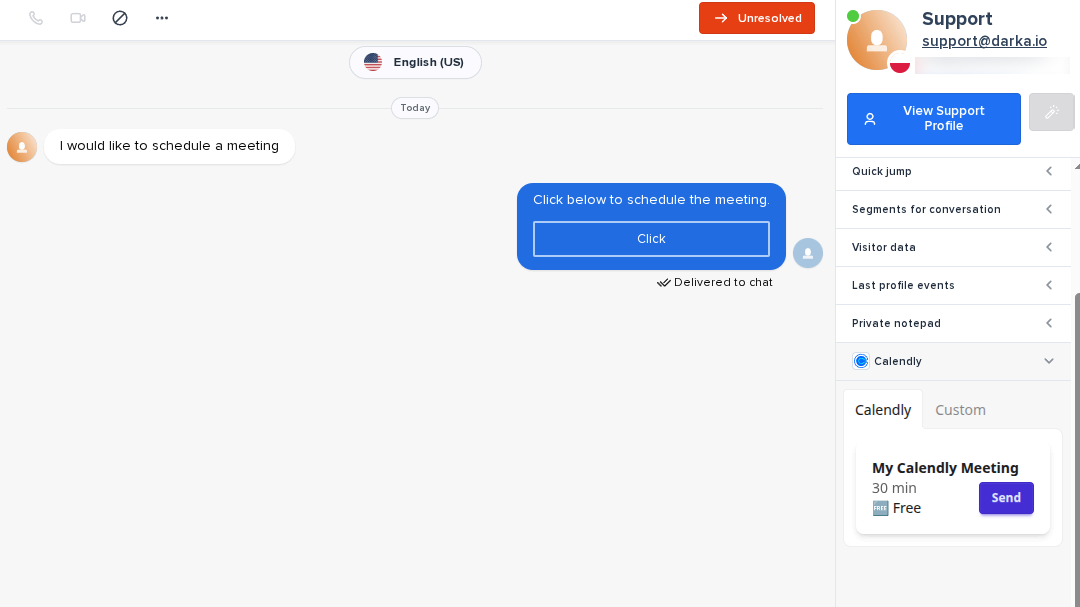
Send Calendly events into a chat
Once the plugin is installed and authorized, your Crisp operator will see a new plugin in their inbox. It contains a list of up to 20 active meeting from your organization. Clicking Send next to the chosen event sends the message with the event URL into the chat.
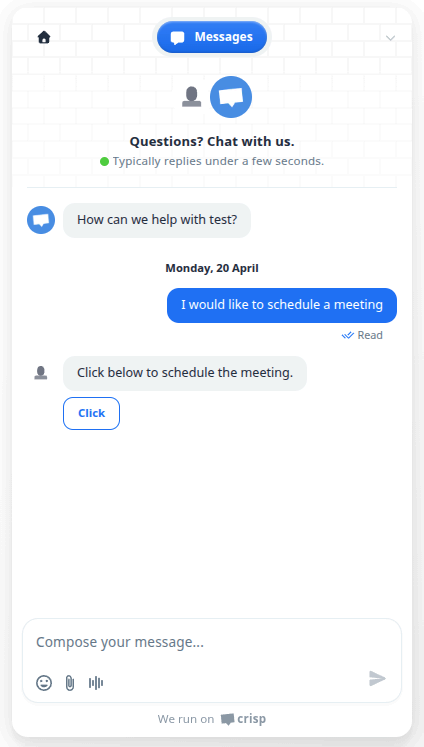
The customer receives the message with the button on their side.
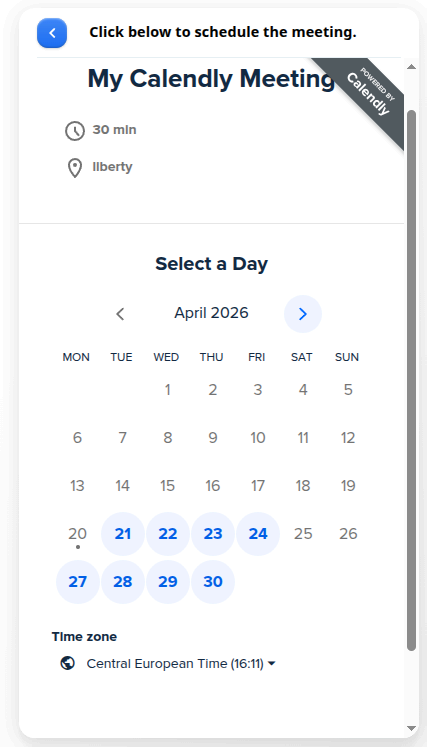
Once they click the button, the Calendly schedulling page is displayed to them directly in the Crisp chat widget. Everything happens in the same widget and your clients do not need to leave your website!
We would love to hear out your feature requests!
Contact us at support@darka.io.